
Most pages about Kheloyar APK download stop at the download button. File size, a security badge, done. But that skips the questions that actually matter. Is the file real? How do you check it before installing? Which permissions are worth worrying about? And if the install fails halfway through, now what?
This guide covers that middle part — the stuff between “I found a download link” and “it’s safely installed on my phone.” Here’s what to check, how the process actually works, and what to do when something goes wrong.
What Is a Kheloyar APK Download and How Does It Work?
APK just means Android Package Kit. It’s the file format Android uses to install any app. Go through Google Play and the store handles a lot of that behind the scenes. Download an APK directly, and you’re doing the install yourself.
There are a few reasons someone ends up searching for a Kheloyar APK download — maybe the app isn’t listed on their store, maybe someone sent them the file, maybe they need a specific older or newer version than what’s currently available.
Whatever the reason, going outside the official store means more of the checking falls on you. Nobody’s screening the file first.
APK Download vs Google Play Installation
Same app, different path to your phone.
Google Play sits between you and the developer, adding a security and distribution layer. With a direct APK, that layer’s gone. You get the raw file, and Android installs it as soon as you grant the right permission.
Which is exactly why checking the source matters more here than it would on Play.
Is a Kheloyar APK Download Safe?
Downloading outside Google Play isn’t automatically risky. What matters is where the file actually came from, and whether it’s still the original file — untouched, unmodified.
A few things worth checking before you commit to a Kheloyar APK download:
- Who’s hosting or publishing it?
- Is there a clear version number?
- Does the file size roughly match what’s listed?
- What permissions does it ask for?
- Any signs it’s been repackaged or altered?
- Is the page itself trying too hard — a wall of confusing buttons, that kind of thing?
- Have you scanned it somewhere reputable first?
What a VirusTotal Result Actually Tells You
VirusTotal’s genuinely handy. It runs your file past a whole batch of security engines at once, and that’s more coverage than any single antivirus gives you.
Still — a clean result isn’t proof of anything beyond “no known malware signatures found.” It won’t tell you if the publisher is who they claim to be. It won’t tell you if the app is quietly harvesting more data than it should. And it definitely won’t vouch for a sketchy download source.
So use it, but treat it as one check among several, not the final word.
Check the Developer or Publisher Information
Before installing Kheloyar APK, try to find out who actually built it.
A few warning signs on a download page:
- No developer information anywhere.
- The site bounces between several unrelated domains.
- A pile of “modified” versions with no explanation of what changed.
- Zero mention of a version number.
- No update history, no release notes, nothing.
If a site can’t tell you where its own file came from, that’s usually enough reason to walk away.
What Does “Install Unknown Apps” Mean on Android?
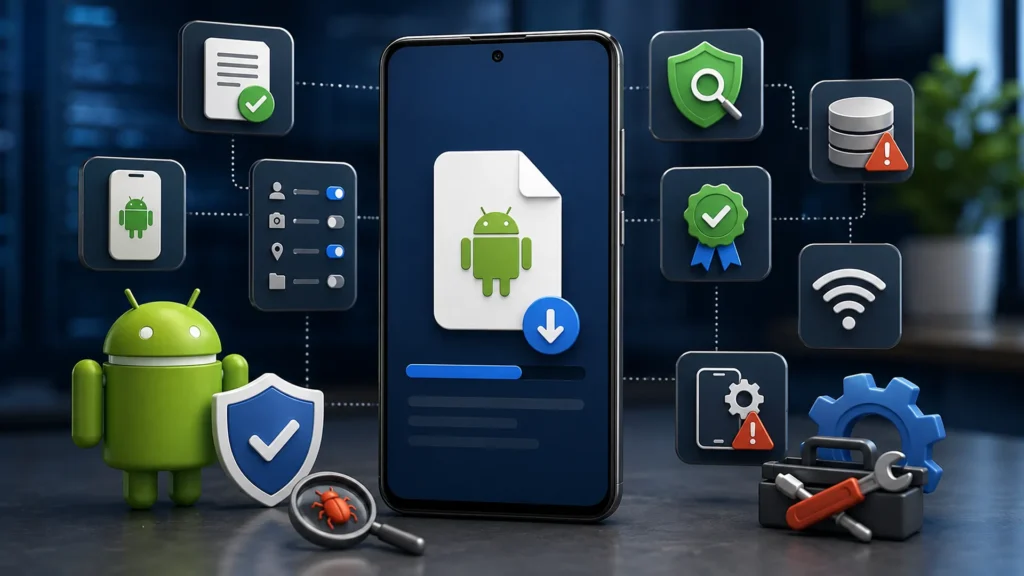
By default, your phone blocks installs from anywhere outside its approved app stores. On newer Android versions, that permission gets granted per-app — not as a blanket phone-wide setting.
So say you download the APK through Chrome. Android will likely ask if Chrome specifically should be allowed to install unknown apps.
That’s it, though. It’s not a stamp of approval on the APK itself. It just tells your phone “let this one app install other things.”
Why You Should Disable the Permission Afterwards
Once you’re done installing, go back and switch that permission off again for whatever browser or file manager you used.
Small step, but it closes a door you’d rather not leave open — you don’t want something else quietly installing later without you noticing.
Red Flags to Check Before Kheloyar APK Download
A minute or two of checking now beats an hour of cleanup later.
1. Suspicious Download Buttons
Some sites plaster the page in oversized download buttons, several of them. Not all lead where you’d expect.
Make sure whichever one you click actually goes to the APK you’re after — not an ad, not some other app entirely.
2. No Version Information
Trustworthy pages usually list the app version and some kind of update history.
If there’s nothing — no version, no changelog — that’s a gap worth noticing.
3. Unexpected File Size
Check what you actually downloaded against the size the page advertised.
A small mismatch might mean nothing. A big one is worth investigating before you go any further.
4. Excessive Permissions
Pay attention to what gets requested during install.
The permissions should roughly match what the app is supposed to do. If a simple app wants access to your contacts, camera, and location for no obvious reason, that’s a flag.
5. Modified or “Cracked” Versions
Extra caution goes to anything labeled modified, unlocked, premium, or cracked.
These have been altered somewhere along the line, and that opens up problems — security holes, privacy issues, account bans, or just outright broken functionality.
What to Check Before Installing Kheloyar APK
Quick reference before you commit:
| Check | What to Look For |
|---|---|
| Source | A clearly identifiable and trustworthy provider |
| Version | Current and clearly stated version |
| File size | Reasonably matches the listed size |
| Permissions | Relevant to the application’s functions |
| Security scan | No obvious malware detection |
| Updates | Recent and understandable update information |
| Device compatibility | Compatible Android version and hardware |
| Account safety | No request for unnecessary credentials |
None of this makes an APK bulletproof. But it catches most of the obvious trouble before it starts.
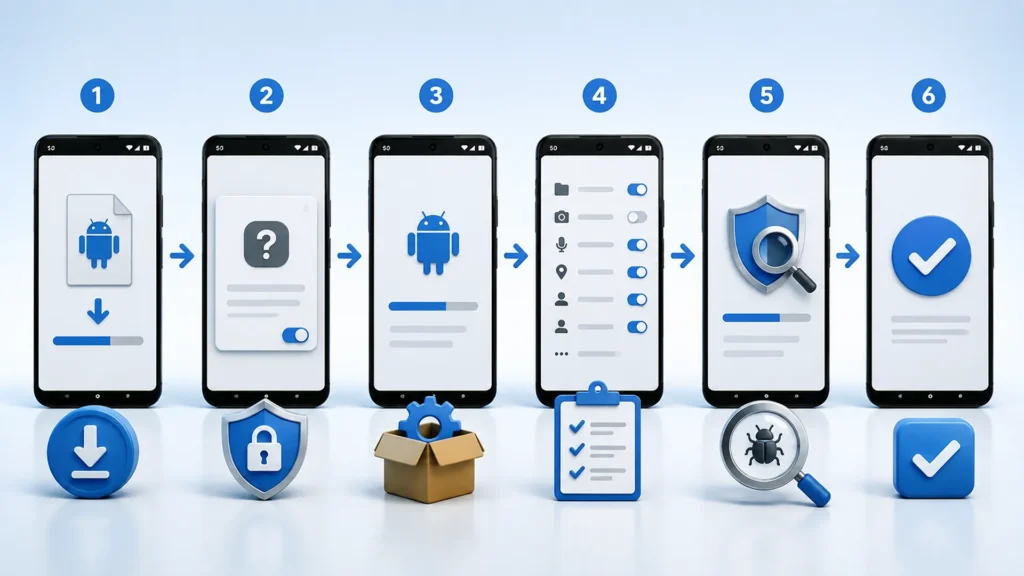
How to Download and Install Kheloyar APK Safely
Source checked, ready to go — here’s the actual process.
Step 1: Check Your Android Version
Find out what Android version your phone’s running first.
Settings, then About phone or Software information. Compare that against whatever minimum version the APK needs.
Step 2: Download the APK From a Trusted Source
Get the exact APK you set out to download. Not a bundled version, not something renamed, not whatever a pop-up is pushing on you.
Once it’s downloaded, take a second to check the file name and size before opening it.
Step 3: Allow Installation From the Relevant App
If Android blocks the install, it’ll prompt you to let your browser or file manager install unknown apps.
Grant that permission only to whatever app you’re actually using to install the file. Nothing else needs it.
Step 4: Open the APK Installer
Find the file in your Downloads folder or file manager, tap it, and the install screen will come up.
Android shows you some information about the app at this point. Actually read it instead of tapping through on autopilot.
Step 5: Review Permissions
Look at what’s being requested one more time before confirming.
Anything that seems off or unrelated to the app’s function — pause and look into it before continuing.
Step 6: Check the Installed Application
Once it’s on your phone, open up the app info page.
Check the name, version, permissions, storage usage. If any of it looks wrong, uninstall it. Don’t just shrug and keep using it.
Kheloyar APK Download: Common Installation Problems
Installs fail for a handful of reasons, and the error message usually points you in the right direction.
“App Not Installed”
Usually caused by:
- A corrupted or incomplete download.
- An incompatible Android version.
- A conflict with something already installed.
- Not enough free storage.
- The wrong APK architecture for your device.
Try downloading it again, and double-check your phone actually meets the requirements.
Parsing Error
This pops up when Android literally can’t read the file properly.
Usually it’s an incomplete download, file corruption, or an Android version mismatch.
Re-download from a source you trust, and check the minimum Android version required.
Not Enough Storage
Installing takes more space than the file size alone suggests — there’s overhead from temporary install files too.
Clear some space and try again.
Existing App Conflict
Already have another version of the app installed? The new APK might not play nice with it.
This also happens when the old and new APK were signed differently.
Don’t just delete the existing app if it’s holding data you care about. Check that it’s backed up first.
Can a Kheloyar APK Be Used Without Wi-Fi?
Installing without Wi-Fi is fine as long as you’ve already got the file and any other data your device needs comes from somewhere else.
Whether the Kheloyar app itself runs offline depends entirely on how it was built.
If it needs to talk to servers for its core features, you’ll need a connection for those parts, full stop.
Mobile Data vs Wi-Fi
Mobile data works as a stand-in, no problem — but how much it eats through depends heavily on what you’re actually doing in the app.
Streaming, downloads, updates, media-heavy features — all of that adds up fast. Keep an eye on your usage if your plan has limits.
Can APK Downloads Cause Account Problems?
Depends on the app, and depends on where the APK came from.
A genuine, authorized APK and a modified unofficial one are not the same thing, even if they look identical on the surface.
Modified versions can bring their own set of headaches:
- Account restrictions.
- Security concerns.
- Login failures.
- Random crashes.
- Forced updates.
- Compatibility problems.
If the app has stated rules around third-party or modified clients, it’s worth reading those before going that route.
Frequently Asked Questions
Is Kheloyar APK download legal?
Depends on the source, the app’s distribution rights, where you’re located, and how you’re using it. Just because a file exists somewhere doesn’t mean it’s officially sanctioned.
When there’s an official or authorized source available, that’s the safer choice.
Why might Kheloyar APK not appear on Google Play?
Lots of possible reasons — regional restrictions, distribution decisions, policy issues, or something the developer changed on their end.
Not being on Google Play doesn’t, by itself, tell you whether the APK is safe or unsafe.
How can I check whether a Kheloyar APK is genuine?
Start with the source, developer details, version number, file size, permissions, and any scan results you can get.
If there’s an official source to compare against, cross-check the details there too.
Can I install Kheloyar APK on every Android phone?
Not guaranteed. Depends on your Android version, processor architecture, device specs, and what the app itself requires.
Check the minimum version and other requirements before installing.
What should I do if the APK keeps crashing?
Restart the phone first, and confirm you’re actually running a compatible version.
After that — check storage space, your connection, app permissions, and whether an update’s available.
If it started crashing right after an install from an unofficial source, it might just be worth uninstalling and getting the app from somewhere more reliable.
Should I install a modified Kheloyar APK?
Modified versions deserve extra scrutiny — someone other than the developer changed something, and you don’t always know what.
Unless you’ve got a good reason and can verify where it came from, the original authorized version is the safer call.
Conclusion
Before you go through with a Kheloyar APK download, run through this quickly:
- Confirm where the file actually came from.
- Check developer or publisher information.
- Verify the version and roughly check the file size.
- Scan it with a reputable security tool.
- Review the permissions before installing.
- Confirm your Android version is supported.
- Skip anything cracked or suspiciously modified.
- Back up important account or device data.
- Turn off “Install unknown apps” once you’re finished.
The download button was never the verification step — it’s just the first click. Check the source, the file, the permissions, the compatibility, the app details, before you install anything. A few minutes now saves you from a corrupted install, an incompatible app, or something on your phone you never actually meant to put there.